How to Edit Real Estate Photos in Lightroom (9 Timed Steps)
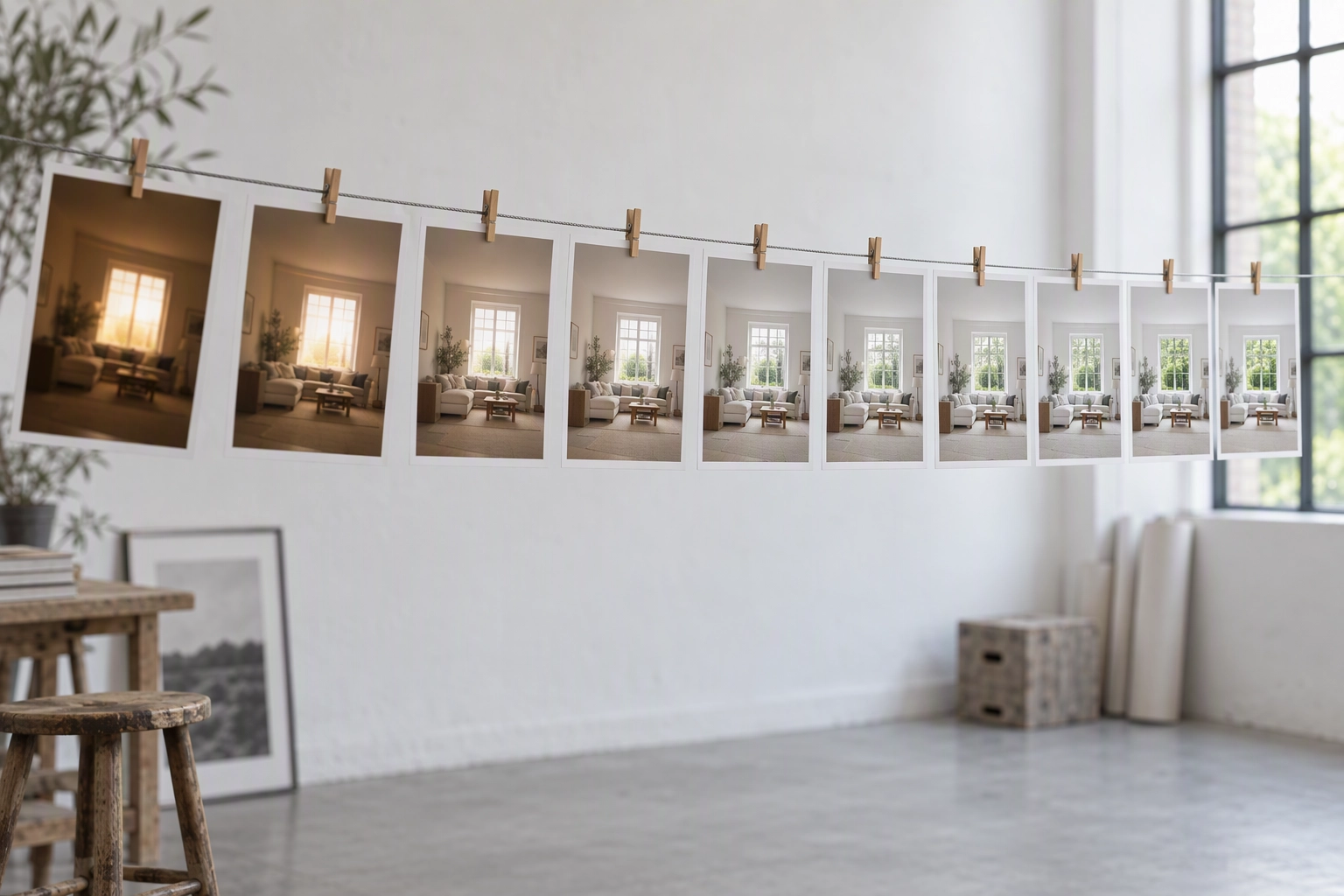
Most listing edits go wrong in the order, not the sliders. If you want to know how to edit real estate photos so they look bright, straight and believable, use this sequence: merge the brackets, apply the lens profile, straighten the verticals, set white balance, set exposure and pull the windows, clean up casts, fix the sky, take out clutter, then export at MLS size.
The order matters because each step changes what the next one sees. Upright crops the frame, so a mask painted before it can land in the wrong place.
Below is the full Lightroom Classic workflow for real estate photography, with the number other tutorials leave out: the minutes each step costs on a 25-photo listing. For routine frames there is a faster finish, an AI pass built to edit a listing in two minutes per image; the last section shows which steps it can take over.
Quick Summary: Edit real estate photos in this order: merge brackets, lens profile, verticals, white balance, exposure and window pull, casts, sky, clutter, export. Careful hand editing of a 25-photo listing takes roughly 2 to 4 hours, about half of it on window pulls and casts. Correct exposure, color and verticals freely; never hide a defect.
How long does each real estate photo editing step take?
Careful Lightroom editing of a 25-photo listing (20 interiors, 5 exteriors), one frame at a time, takes roughly 2 to 4 hours. Two steps, the window pull and cast correction, eat about half of it.
| Step | Lightroom Classic tool | Minutes per frame | Images that need it | Listing total |
|---|---|---|---|---|
| 1. Import, cull, merge brackets | Photo Merge > HDR | 0.3–0.5 | 25 | 8–12 min |
| 2. Lens profile | Lens Corrections (import preset) | ~0 | 25 | 0–1 min |
| 3. Verticals | Transform > Upright | 0.5–1.5 | 25 | 12–38 min |
| 4. White balance | White Balance Selector + Sync | 0.3–0.5 | 25 | 8–12 min |
| 5. Exposure and window pull | Basic panel + masks | 2–4 | 20 interiors | 40–80 min |
| 6. Casts | Color Mixer, masks | 1–2 | 20 interiors | 20–40 min |
| 7. Sky | Select Sky, or Photoshop Sky Replacement | 5–10 | 2–3 grey-sky exteriors | 10–30 min |
| 8. Clutter | Remove tool, Generative AI | 2–4 | about 8 | 16–32 min |
| 9. Check the set, export | Survey view + export preset | ~0.2 | 25 | 5–8 min |
| Total | about 5–10 | 2–4 hours (119–253 min) |
These are planning figures for a competent editor, not a stopwatch test, and they sit inside what working photographers report. One editor on r/RealEstatePhotography describes about 20 seconds per image unless there's cloning; another, blending flash frames by hand, quotes around 5 minutes a shot and 15 for difficult open-plan rooms.
That spread is the useful part. Steps 1–4 and 9 are fast and nearly fixed.
Steps 5–8 swing with the property, and that is where presets, outsourcing or an AI pass pay off.
How to edit real estate photos in Lightroom: the 9 steps
These steps assume Lightroom Classic and raw files shot on a tripod, ideally bracketed.
Step 1: Import, cull and merge the brackets
Apply a develop preset on import, cull, then merge each bracket set into one HDR file. Heavy computer jobs go first so the rest of the workflow has a finished base.
-
Pick your listing preset under Apply During Import and tick Build Smart Previews.
-
Cull with P (pick) and X (reject) to your board's photo cap; many MLSs allow 25 to 50.
-
Run Photo > Stacking > Auto-Stack by Capture Time, then Photo > Photo Merge > HDR.
Adobe's HDR photo merge writes a DNG with "-HDR" in the filename that behaves like a raw file. Tick Auto Align and Create Stack; leave Deghost off unless something moved.
You can merge multiple stacks in one pass. If you shoot flambient editing sets instead, the blend happens in Photoshop.
Step 2: Apply the lens profile
Tick Enable Profile Corrections and Remove Chromatic Aberration in the Lens Corrections panel before you touch perspective. Put both in your import preset and this step costs nothing per frame.
The profile removes the barrel distortion of the wide 16–24 mm focal lengths interiors are usually shot at. Adobe's Upright documentation also notes that applying the lens profile first gives Upright a better image to analyze.
Step 3: Straighten the verticals
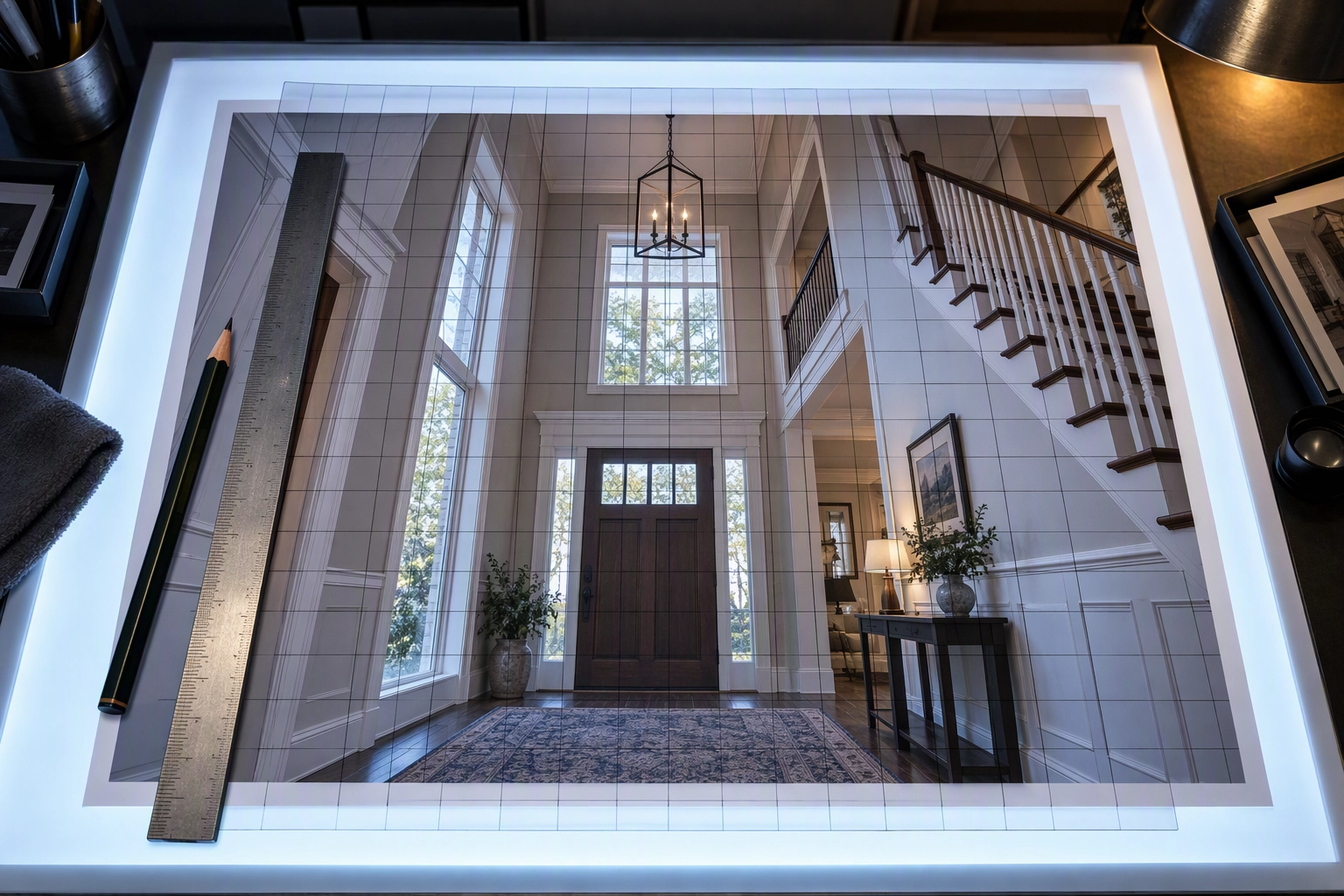
Open the Transform panel and click Upright > Vertical. When it picks the wrong lines, switch to Guided and draw two along door frames or wall corners.
Leaning walls are the fastest tell of amateur real estate photography.
-
Vertical fixes converging walls and is the default for rooms.
-
Auto balances level and perspective for a house shot from the street.
-
Guided takes up to four lines, useful with sloped ceilings and stair rails.
-
Tick Constrain Crop so white wedges never reach the export.
Do this before tone editing, because Upright crops the frame.
Step 4: Set white balance off something white
Pick the White Balance Selector (W) and click a truly neutral surface: a white ceiling, primed trim, a white cabinet door. Avoid painted walls; many "white" paints are warm or cool by design.
Correct one frame per room, select the rest of that room and click Sync. Sync White Balance and the Basic tone sliders, but leave Transform and Masks unticked.
Mixed lighting needs a decision, not a compromise. Daylight sits around 5,600 K and tungsten bulbs around 2,700 K, so balance for the dominant source and fix the other locally in Step 6. Our interior real estate photography guide covers switching bulbs off at the shoot.
Step 5: Set exposure and pull the windows
Lower Highlights, raise Shadows, then set Whites and Blacks so nothing clips. Pull the view with a local mask so it reads but stays darker than the room.
This is the biggest editing cost on interiors and the step most likely to look overcooked.
-
Highlights −60 to −100, Shadows +30 to +60.
-
Hold Alt/Option while dragging Whites and Blacks to see clipping, then back off.
-
Clarity +5 to +10 at most, Dehaze 0 to +5.
For the glass, use Masking with a Brush (Auto Mask on) or an Objects selection, then lower brightness and Highlights inside the mask. A view brighter than the room is the classic fake look.
If the glass is pure white in every bracket, no slider recovers it. Shoot a darker bracket or a flash window pull next time.
Step 6: Clean up color casts
Fix the casts white balance couldn't, then add a little Vibrance. The usual suspects are orange spill from bulbs on walls, green from fluorescent tubes and blue daylight on white surfaces.
-
In the Color Mixer (it replaced the HSL panel in 2023), lower Orange and Yellow saturation by 10–30.
-
For a cast in one spot, paint a mask and adjust Temp and Tint there only.
-
Vibrance +5 to +15 before Saturation, which usually stays at 0.
-
Keep lawns believable. Grass that glows reads as edited.
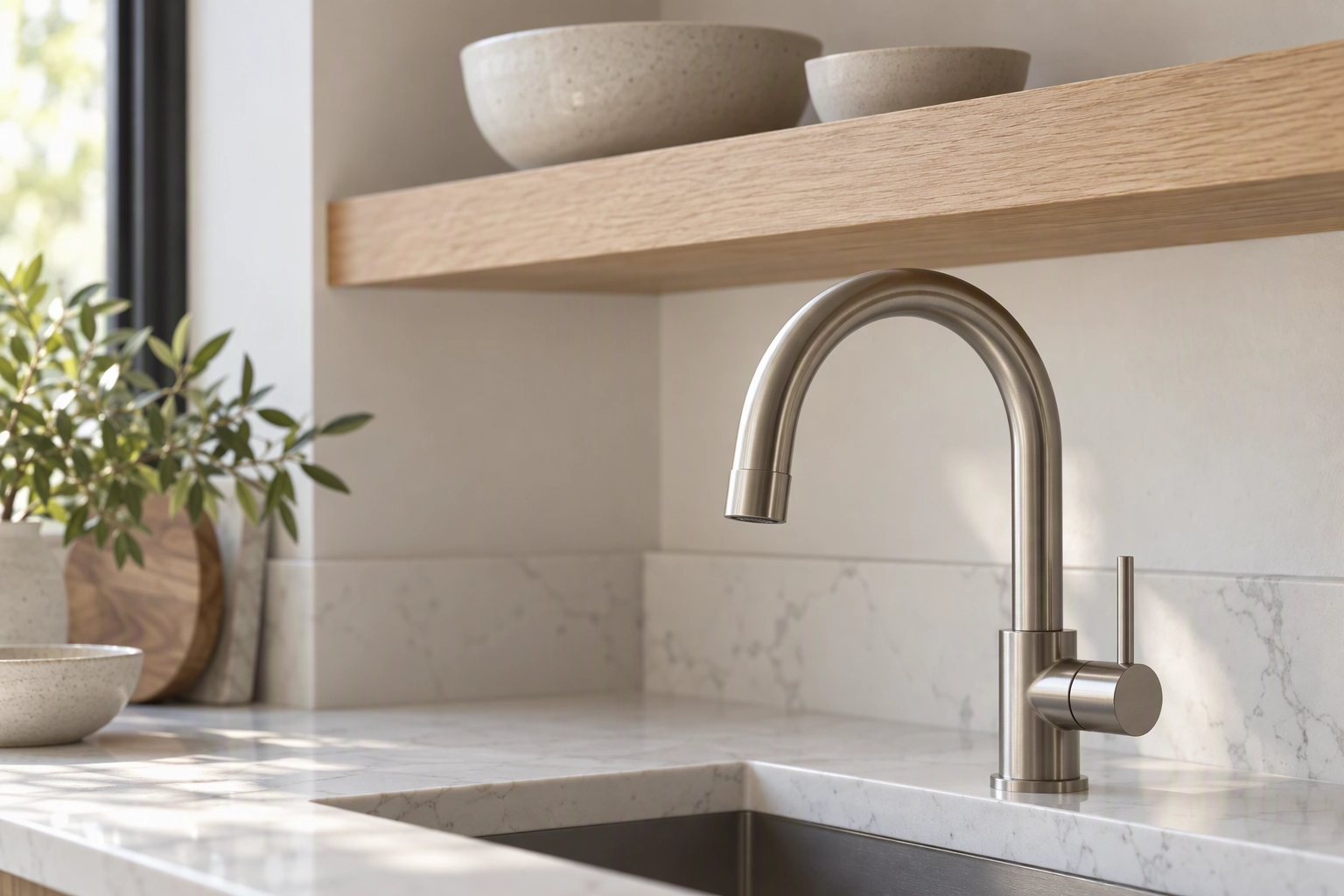
Real finishes are the test: oak should still look like oak.
Step 7: Fix the sky on exterior shots
For a dull but acceptable sky, use Masking > Select Sky and adjust Dehaze and Temp inside the mask. For a grey sky that needs replacing, Lightroom Classic has no Sky Replacement command: use Photo > Edit In to send the file to Photoshop, then Edit > Sky Replacement.
Photoshop's Sky Replacement builds the mask, but three checks are yours:
-
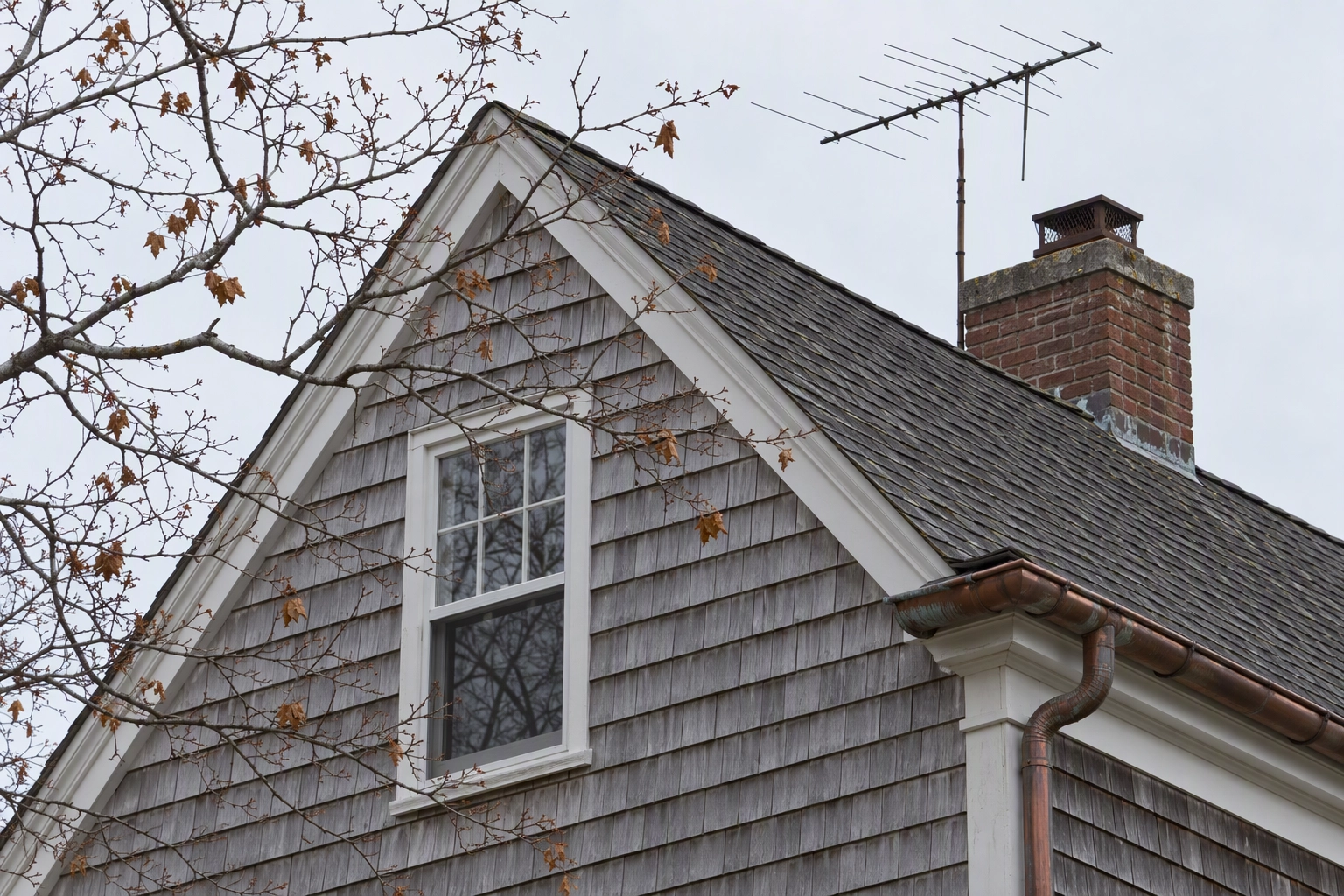
Edges. Zoom to 100% around bare branches, gutters and antennas and look for halos.
-
Light direction. A sunlit sky over a house in flat lighting looks pasted on.
-
Plausibility. Pick a sky the area actually gets.
A new sky changes the scene, so check your board's disclosure rule; our sky replacement guide covers choosing a believable one. Most listings need it on only two or three exterior shots.
Step 8: Take out clutter, never defects
Open the Remove tool (Q), tick Use Generative AI and brush over temporary clutter: cords, bins, toiletries, a car in the drive. Leave anything the buyer will find when they walk the property.
Adobe's Remove tool runs on Firefly, needs an internet connection and returns three variations. With Detect Objects on, it adds the object's shadow and reflection to the selection.
Cracks, stains, water marks, worn flooring and the road out front stay. Hiding them isn't retouching, it is concealment.
Step 9: Check the set and export to MLS size
Look at the whole listing together, fix what stands out, then export sRGB JPEGs at 2,048–3,000 px on the long edge. Consistency from room to room is what makes real estate photography look professional.
Select all 25 images and press N for Survey view. Look for the one room warmer than the rest or the one view brighter. Then open File > Export:
-
Image Format: JPEG. Color Space: sRGB. Quality: 80–85.
-
Resize to Fit: Long Edge, 2,048–3,000 px. Tick Limit File Size To if your MLS caps uploads.
-
Output Sharpening: Screen, Standard.
Our MLS photo size requirements guide lists specs by board, including CRMLS's 15 MB or 3,000 × 2,000 px limit.
What makes real estate photography look overcooked?
Overcooked editing comes from pushing global sliders to fix local problems. The tells are halos, grey walls, crunchy texture, neon lawns and a view brighter than the room.
| Symptom | Usual cause | Fix |
|---|---|---|
| Grey halo around window frames | Highlights at −100 plus heavy Clarity | Mask the view; Clarity under +10 |
| Flat, grey midtones | Shadows lifted before Highlights | Highlights first, then Shadows |
| Crunchy grout and carpet | Texture, Clarity or sharpening too high | Pull back; sharpen for screen at export |
| Neon lawn, cyan pool | Global Saturation | Saturation to 0; targeted Mixer moves |
| A different white in every room | Balance set by eye, frame by frame | Sample a neutral, sync per room |
What should real estate photo editing never change?
Correct exposure, color and verticals freely; never hide defects. Corrections fix what the camera got wrong, so the photo matches the room.
Changes to the scene, such as a new sky, a greener lawn, deleted objects or virtual staging, usually need disclosure. Hiding a defect is misrepresentation, whatever your MLS says about disclosure.
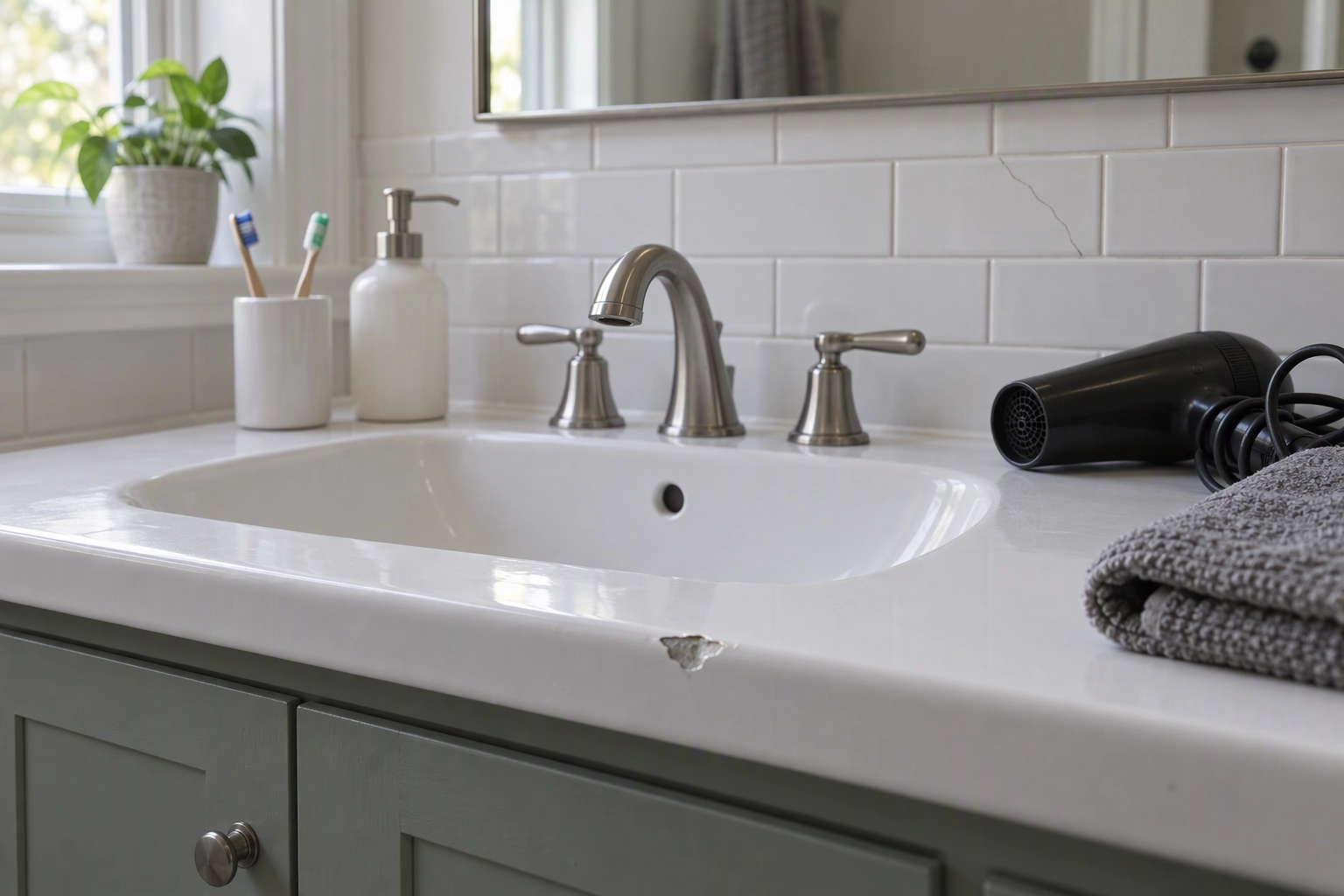
The NAR Code of Ethics sets the standard in one line: REALTORS® must "present a true picture in their advertising, marketing, and other representations" (Article 12). For where each kind of edit sits, read what retouching must not change; for board rules on virtual staging, see the MLS disclosure rules.
Where does an AI finishing pass fit?
An AI tool like Plotpane fits after Lightroom, as a per-image finishing pass on routine images. It is not a Lightroom replacement: it doesn't merge brackets or develop raw files, and it applies one tool per render.
What it takes off your desk is steps 4–8 on images that all need the same corrections.
-
One tool per render. Auto Enhance handles brightness, white balance, color and clarity in one render. Perspective Fix, Sky Swap, Clutter Removal, Lawn & Pool Revive and Virtual Staging are separate, and stacking two treatments on one photo costs two credits.
-
About two minutes an image, three at a time, in batches of 10, 50 or 150 by plan. Output is a JPEG at about 2.4K, or about 4.7K for a second credit.
-
One frame in, one frame out. No bracket merging, and raw files are read from the camera's embedded JPEG, so do highlight recovery in Lightroom first. It never paints a view into blown glass.
The hybrid workflow for a 25-photo real estate listing
Keep the steps Lightroom does well and cheaply, then hand the repetitive ones to the AI pass:
| Stage | Where | Your time | Credits |
|---|---|---|---|
| Steps 1–3, then export JPEGs | Lightroom | 20–55 min | 0 |
| Auto Enhance on all 25 | Plotpane | upload, review | 25 |
| Sky Swap on 3 exteriors | Plotpane | review | 3 |
| Clutter Removal on 8 images | Plotpane | name the objects | 8 |
| Total | 20–55 min, plus review | 36 |
Thirty-six renders at about two minutes each, three at a time, is roughly 12 rounds, or about 24 minutes of unattended rendering. That uses 36 of a Starter plan's 100 monthly credits ($39 a month billed yearly).
Starter batches up to 10 images, so that is three batches; Pro takes all 25 at once. New accounts get 3 free renders, no card needed.
When to stay in Lightroom
Stay in Lightroom for hero shots in heavy mixed lighting, where a hand blend still wins, and for a signature grade, since Plotpane has no saved presets. Our guide to real estate photo editing software compares tools stage by stage, and photographers shooting several listings a week can see how batches fit in bulk real estate photo editing.
Frequently Asked Questions
What order should you edit real estate photos in?
Merge brackets, lens profile, verticals, white balance, tone and windows, casts, sky, clutter, export. Geometry comes first because Upright crops the frame; scene changes come last because you may need to disclose them.
How long does it take to edit real estate photos?
A careful Lightroom editing pass runs about 5 to 10 minutes a frame, or 2 to 4 hours for a 25-photo listing. With a tuned preset and an easy house, experienced editors report far less.
Should I use Lightroom or Photoshop for real estate photography?
Lightroom for merges, geometry, tone, cleanup and export across a whole listing. Photoshop for layer work such as flambient blends and sky replacement. Most real estate photographers use both.
Can I edit real estate photos without bracketing?
Yes, if the windows aren't blown. A single raw frame holds a lot of highlight detail, so lower Highlights and mask the glass.
What export settings should I use for the MLS?
JPEG, sRGB, quality 80–85, landscape, 2,048–3,000 px on the long edge, under your board's file-size cap (5–15 MB is typical), with no watermarks or text.
Do I have to disclose edited listing photos?
Corrections to brightness, white balance and verticals generally don't need disclosure. Virtual staging, sky replacement, lawn greening and object removal usually do, and rules vary by MLS and state.
Time your next listing against the table above. Whatever steps 5–8 cost you is the number to beat.